
How to use a background template when printing on "Print to PDF Annotator"
"Print to PDF Annotator" with background template (e.g. letterhead)
With the Print to PDF Annotator feature, documents from almost any Windows application can be imported directly into PDF Annotator. In combination with background templates (e.g. letterheads, reports, or note pages), you can create professionally designed PDFs in just a few steps.
Step 1: Print to PDF Annotator
Open your document in the desired application (e.g. word processor, spreadsheet, browser, text editor) and select Print. Choose Print to PDF Annotator as the printer and start the print job.
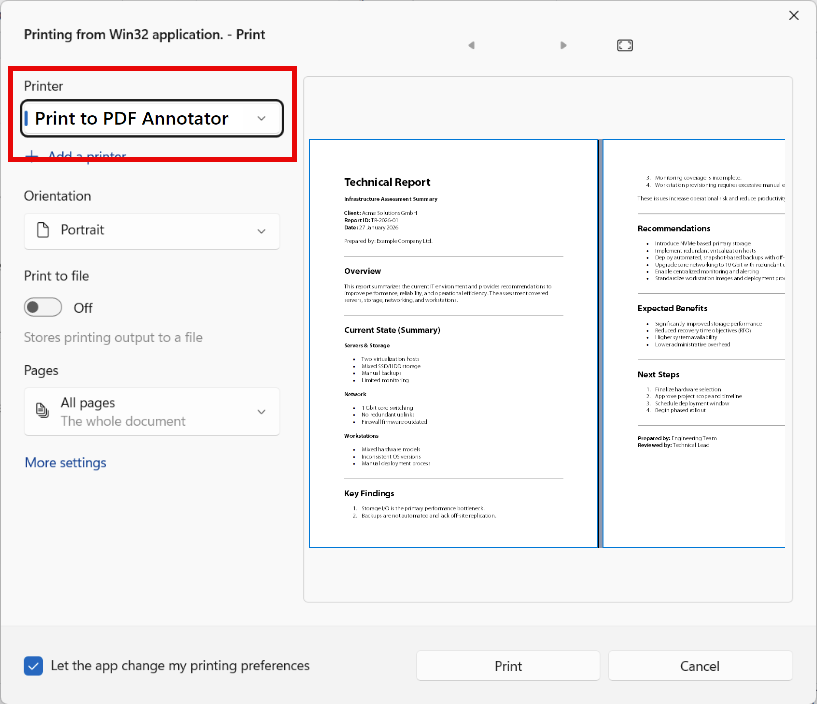
Step 2: Print job completed
Wait a moment until the print job is completed. A PDF Annotator window will then open automatically. PDF Annotator will confirm the successful import.
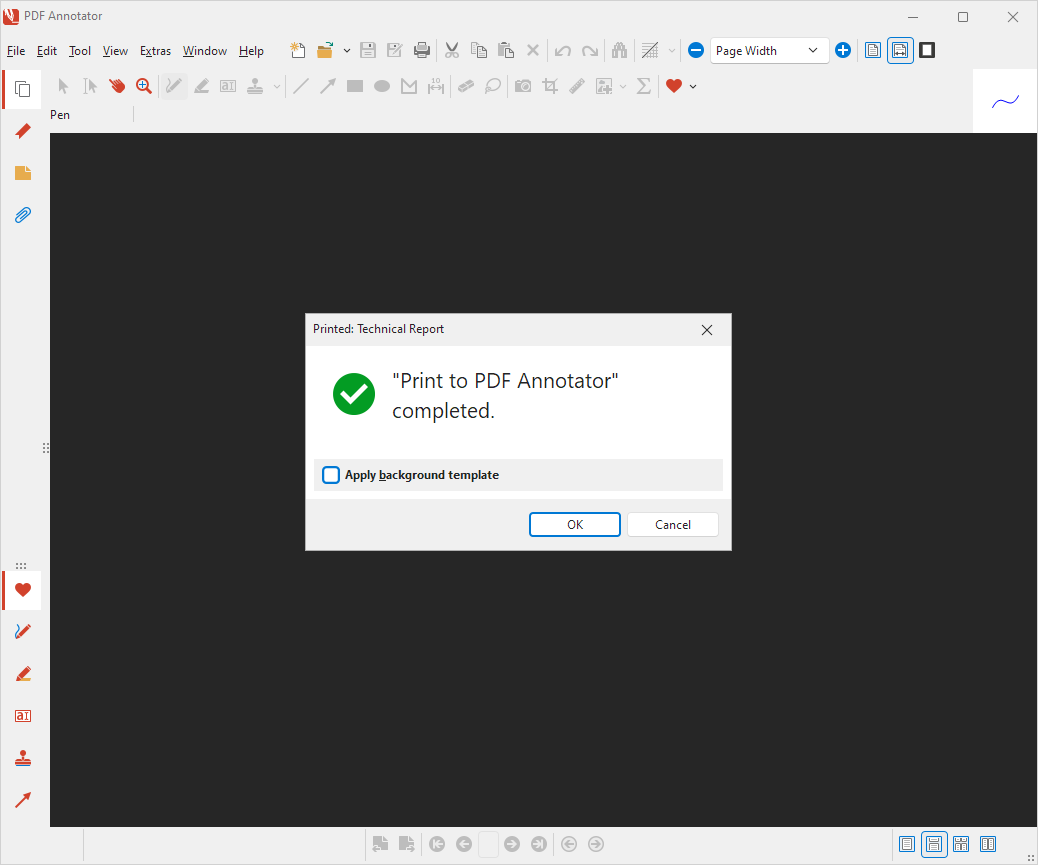
Step 3: Select a background template
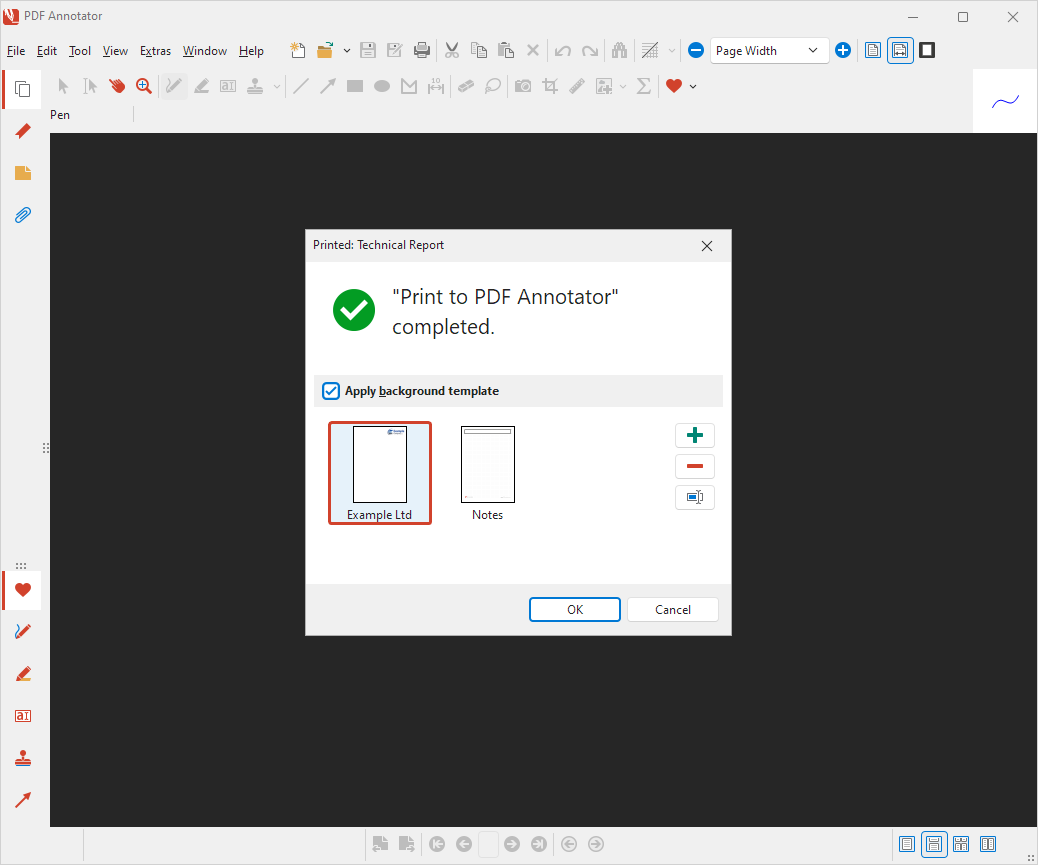
Enable the Apply background template option to immediately apply a suitable background to the document.
Select an existing background template, such as a company letterhead or a note page. Using the plus button, you can add new templates or manage existing ones at any time.
You can read how to create your own templates here: How to create a PDF template.
Step 4: Review the result in the document
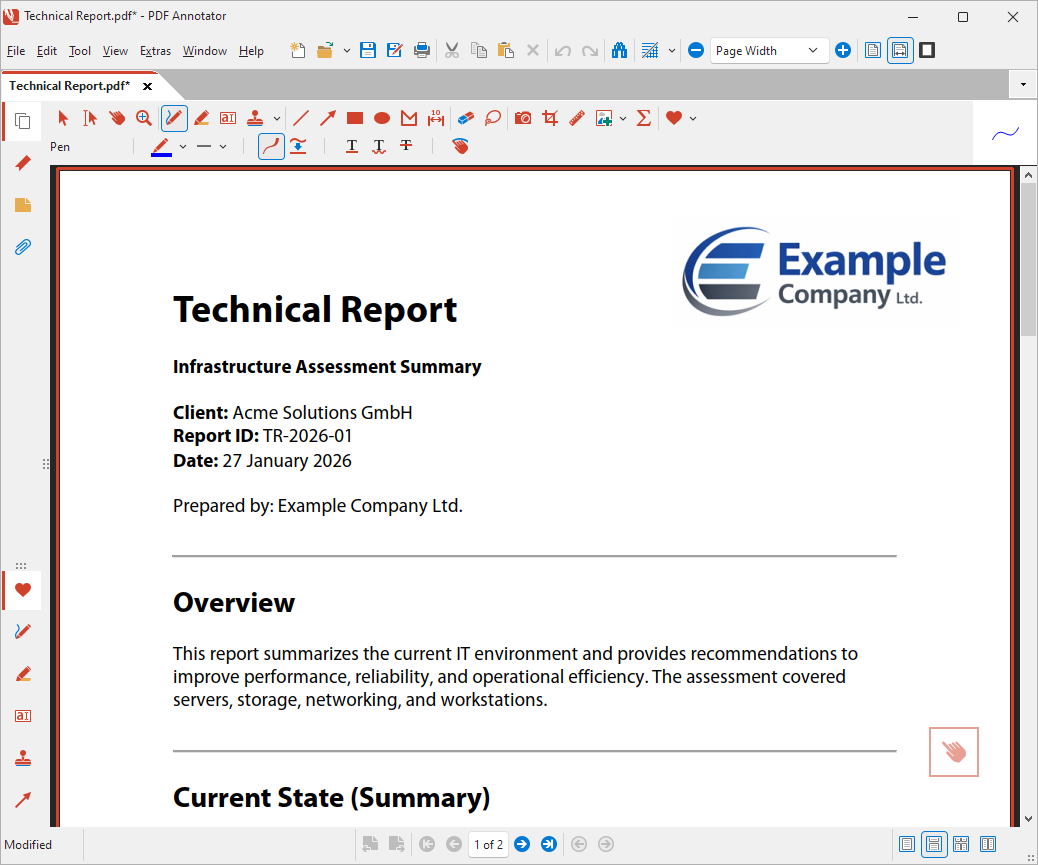
Click OK to complete the creation of the printed document.
The printed document is now combined with the selected background template. The new document can be annotated or further edited as usual.
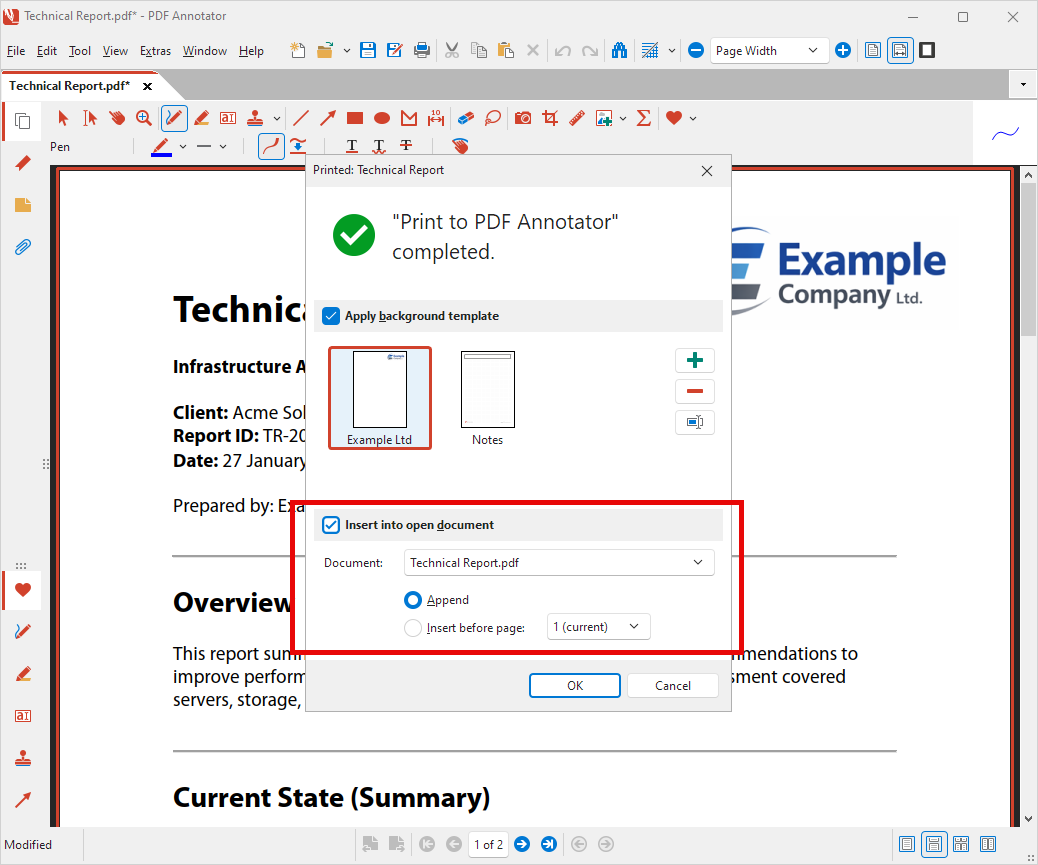
Step 5: Insert into an existing document (optional)
Optionally, you can append the new document to an already open PDF or insert it before a specific page – ideal for reports that are compiled from multiple sources.
To do this, check Insert into open document and select the desired target.
Conclusion
With Print to PDF Annotator and background templates, you can quickly create consistently designed PDFs from virtually any application.
Especially for reports, quotations, or technical documentation, this feature saves time and ensures a professional appearance – without any post-processing in external tools.
By the way: You can learn how to use PDF templates for new (empty) documents here:
How to use PDF templates.