
How to duplicate a stamp
Want to use an existing stamp as the starting point for a new one? Here's how!
PDF Annotator comes with quite a selection of default stamps, and you have probably created some stamps of your own, too. Existing stamps cannot be edited directly. However, you can duplicate any stamp and adjust it to your needs along the way: You place the stamp on a document, modify or extend it there if needed, and save the result as a new stamp.
In this example, we add the text "OK" to the check mark stamp and turn the result into a new stamp. It's just a couple of steps:
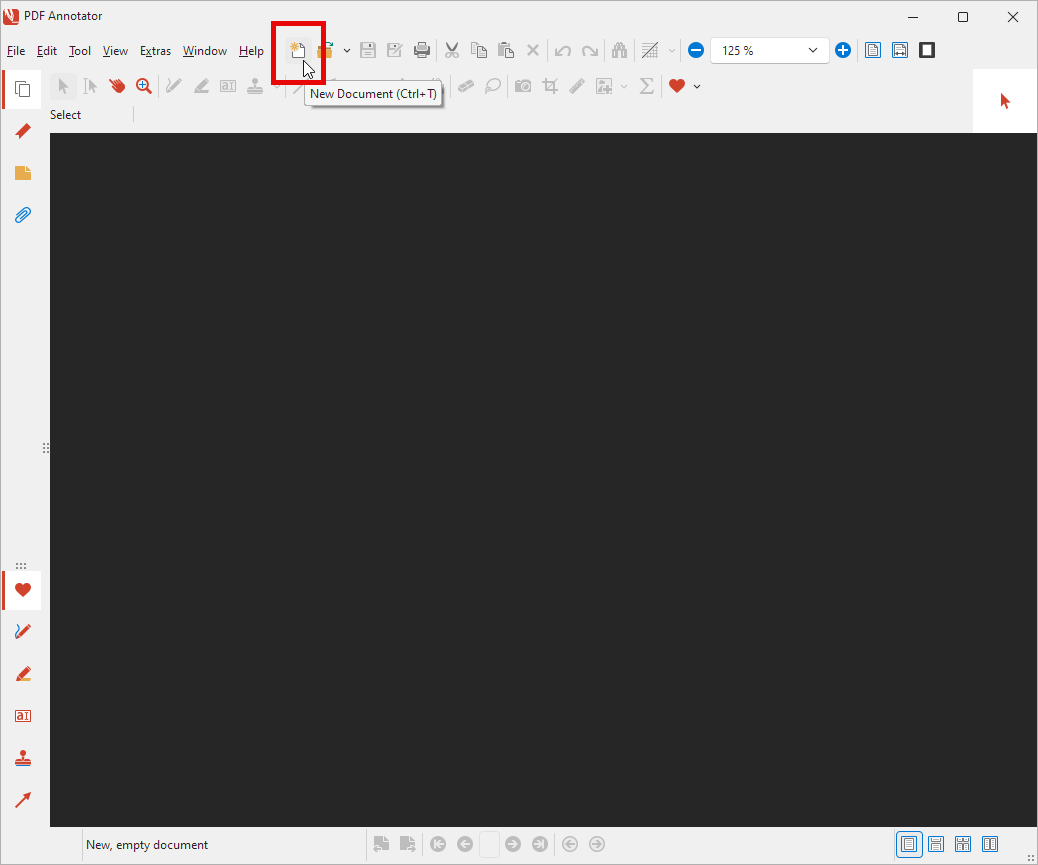
First, we click File, New to create a blank new document, which we'll use as a scratchpad.
Next, we open the Stamp toolbox with a click on the tab with the stamp icon at the bottom left.
We select the stamp we want to duplicate, in our case the check mark, and click anywhere in our document to place the stamp there.
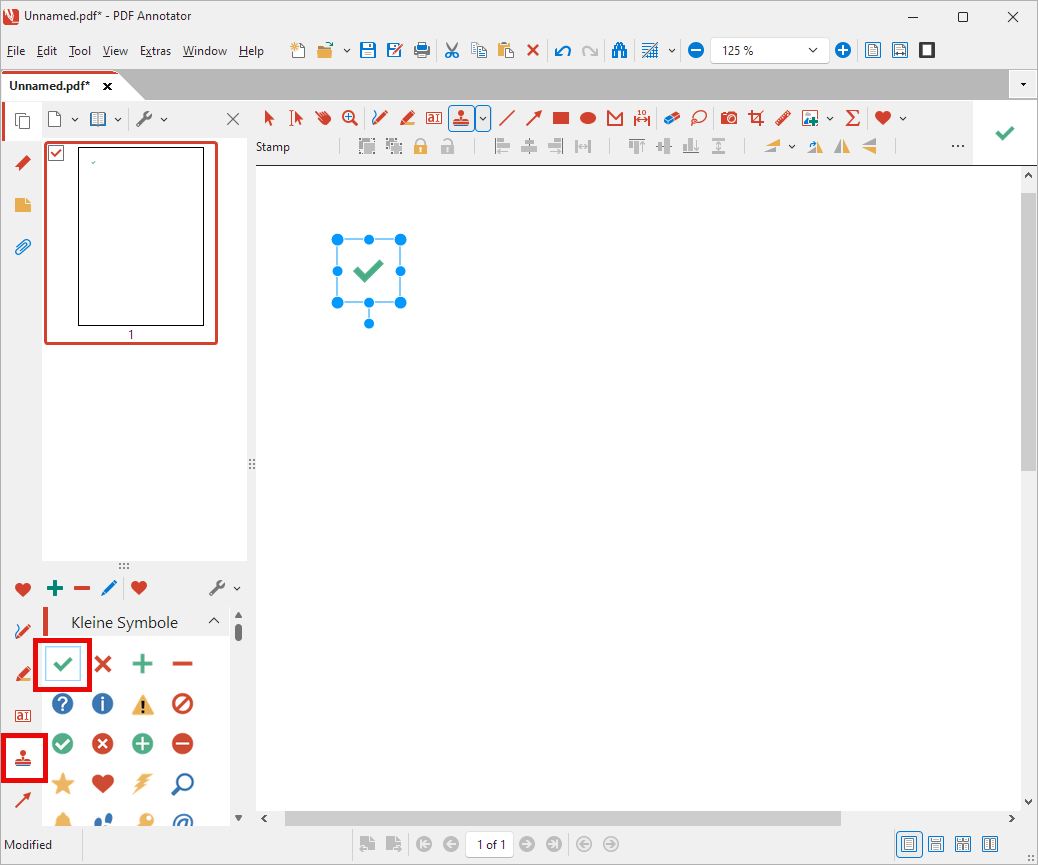
The stamp is now a regular annotation on our page, so we can modify it like any other annotation, or add further annotations to it. If you simply want an unchanged copy of the stamp, you can skip this step.
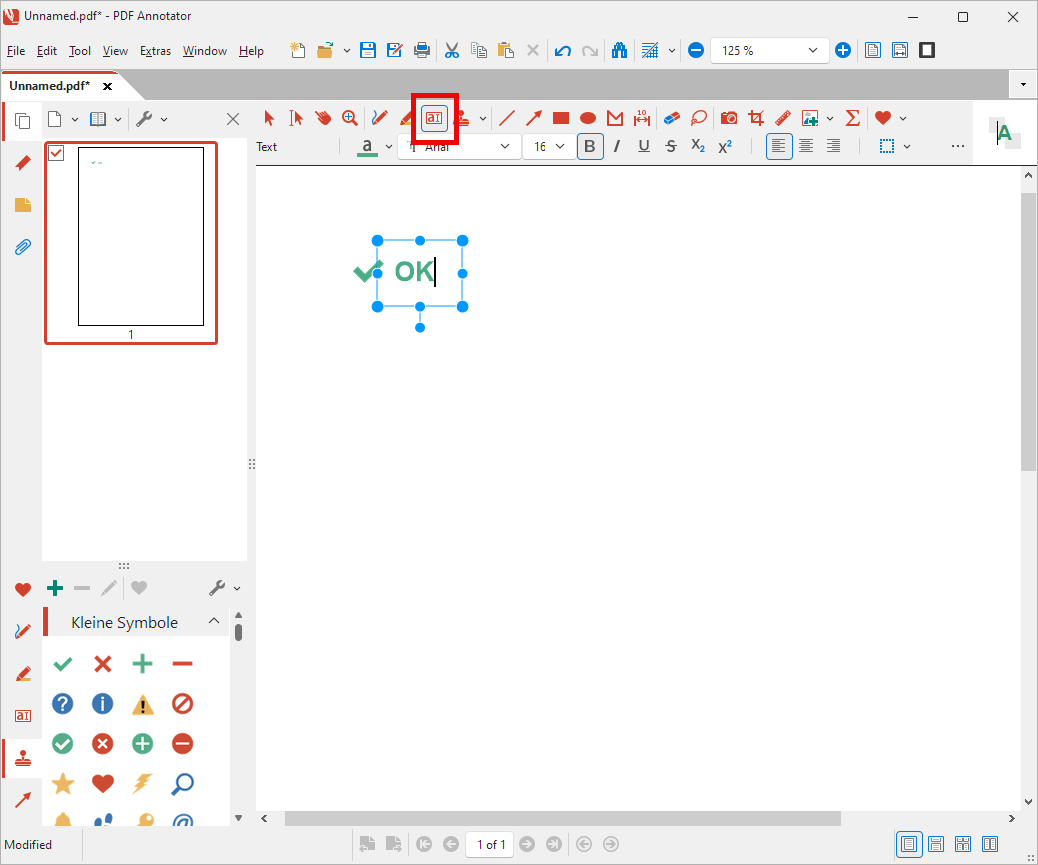
In our example, we choose the Text tool, click to the right of the check mark, and type the text "OK". Feel free to adjust the font, size, and color. A tip: The expanded color picker offers a "Pipette" tool, which lets us pick up the exact green of the check mark.
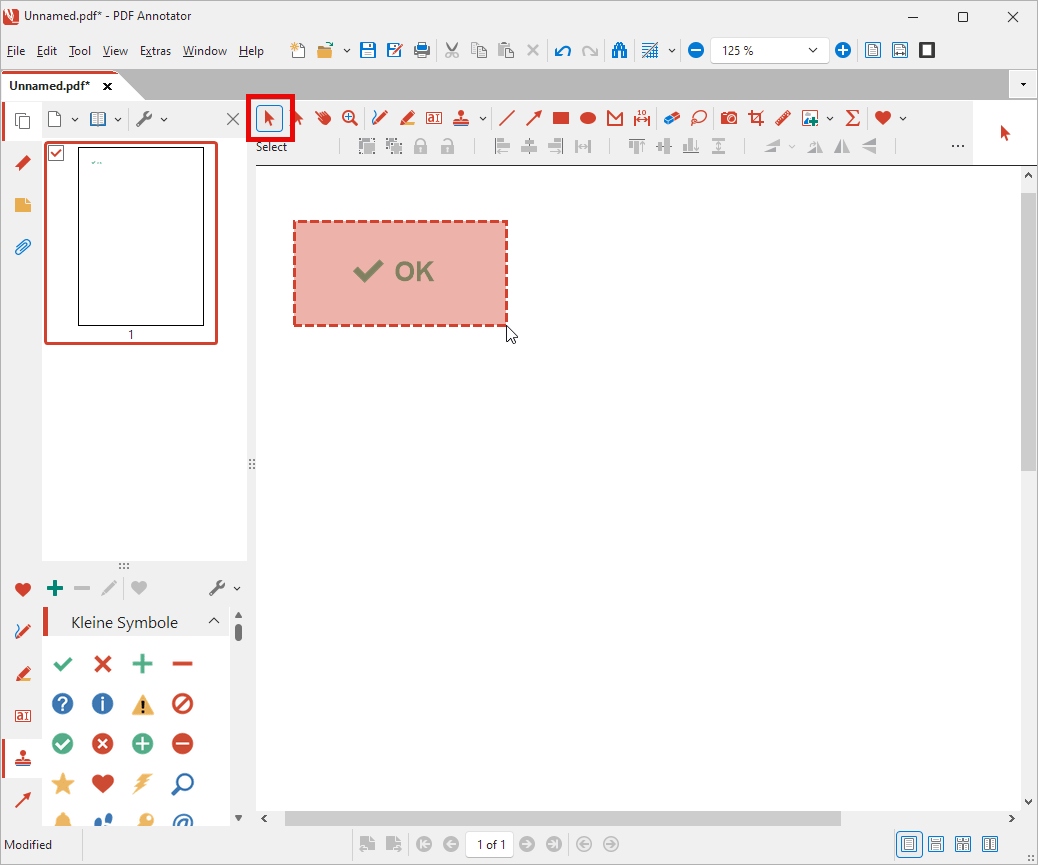
Now we switch to the Select tool and drag a frame around the check mark and the text, so both annotations are selected.
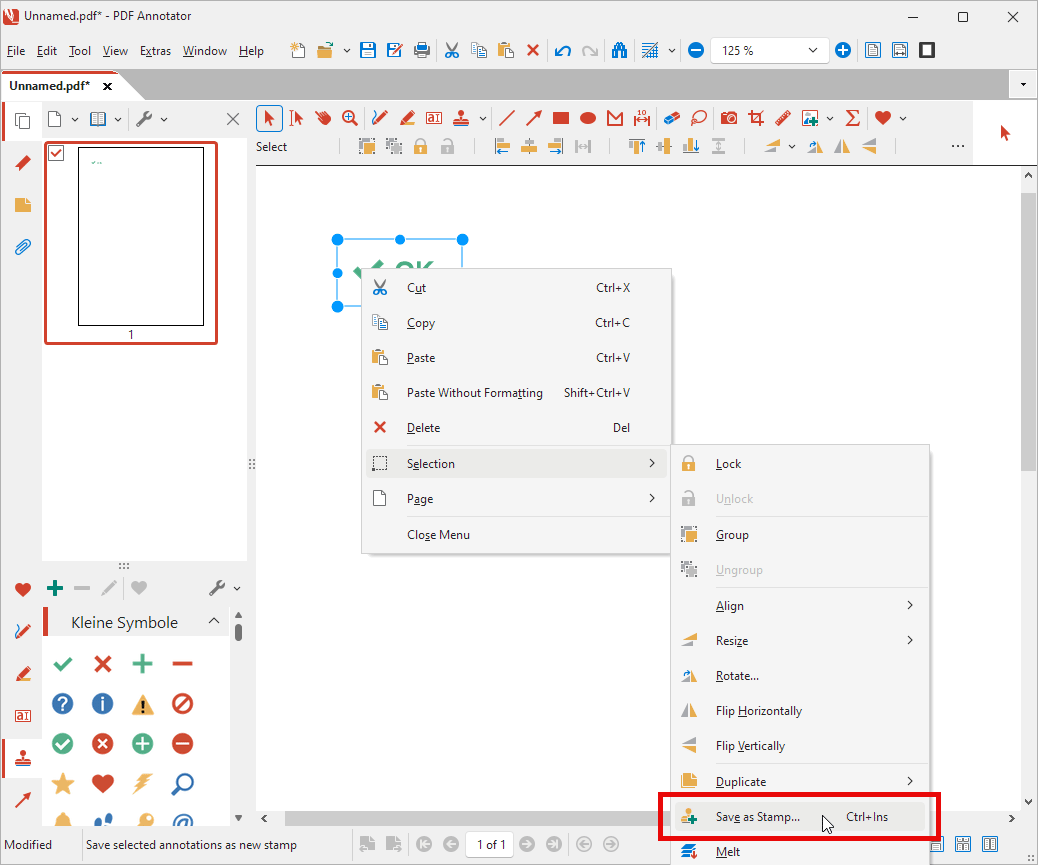
We right-click the selection to bring up the context menu. On the menu, we choose Selection, Save as Stamp.
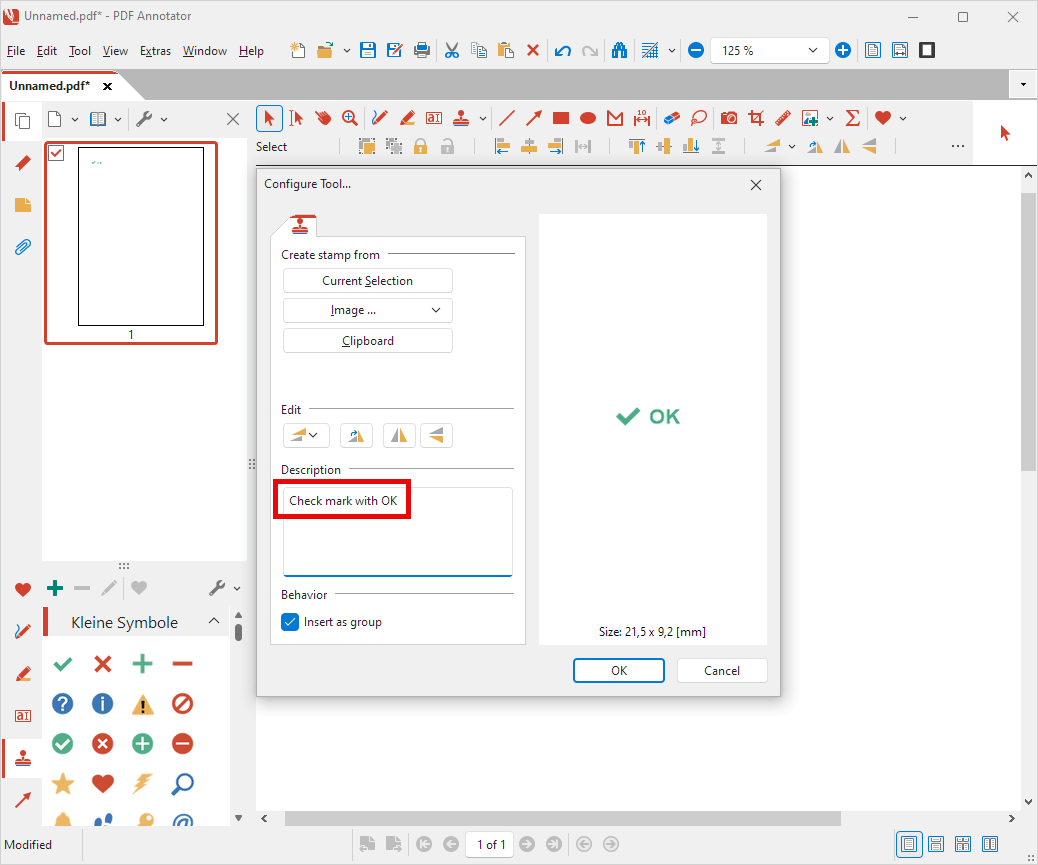
The Configure Tool window comes up, where you can enter a Description for the new stamp, for example "Check mark with OK".
The description appears later when you hover over the stamp in the Stamp toolbox, so you can tell the original and the new stamp apart.
After clicking OK, the new stamp is available in the Stamp toolbox, in addition to the original check mark. Like any other stamp, you can place it on any document with a single click.
Afterwards, you can close the scratchpad document without saving it.